> ## Documentation Index
> Fetch the complete documentation index at: https://docs.terracetech.co/llms.txt
> Use this file to discover all available pages before exploring further.
# Quickstart
> Set up your operation and create your first order.
This guide takes you from signing in to creating your first order in Terrace. It should take about ten minutes.
## Before you begin
* A Terrace account. If a teammate invited you, open the invitation link and set your password. If you're starting a new operation, [contact us at founders@terracetech.co](mailto:founders@terracetech.co?subject=Getting%20started%20with%20Terrace) and we'll get you set up.
* A phone, tablet, or computer with a browser. Terrace works on all three.
## Get started
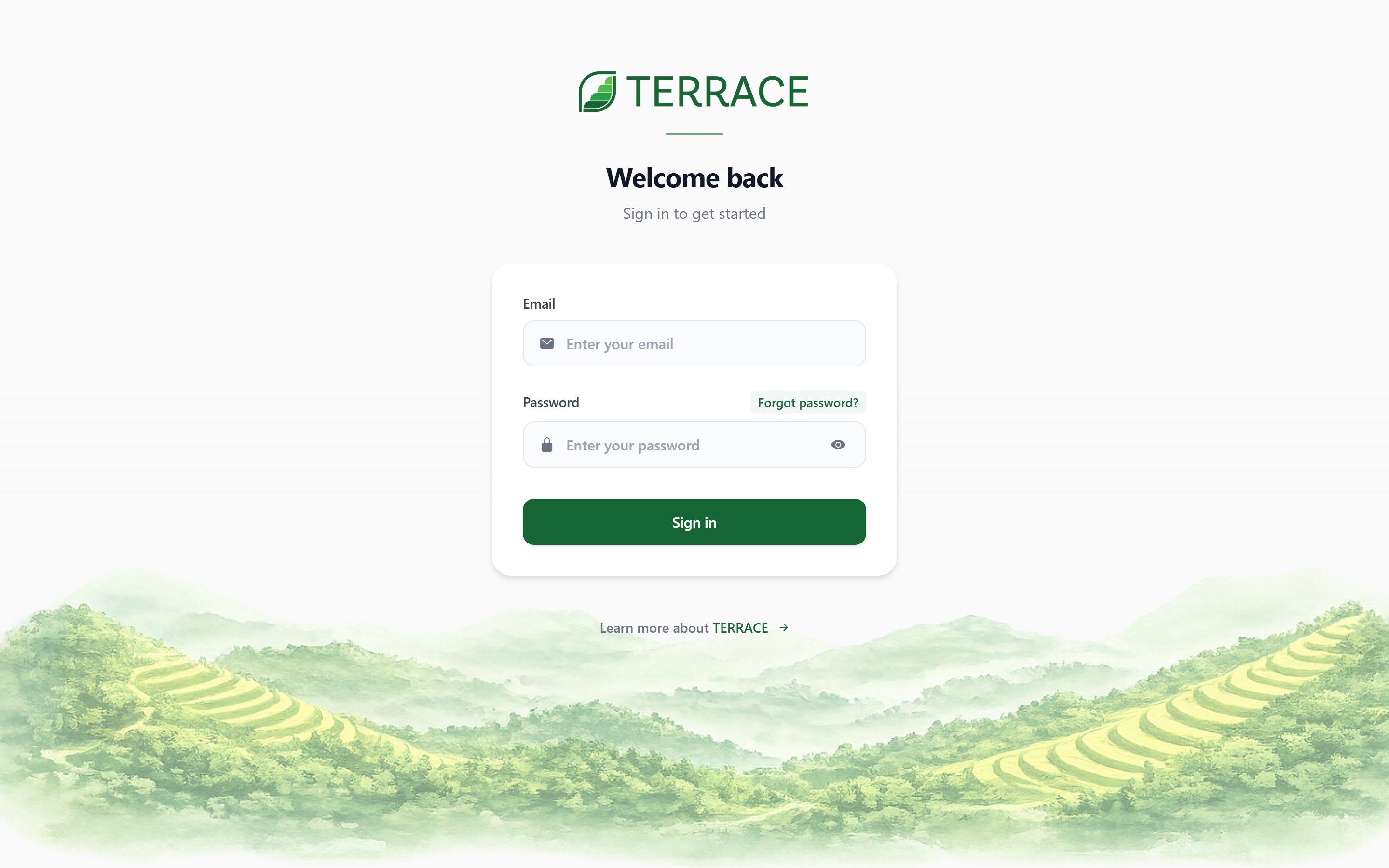
Open Terrace and sign in with your email and password. Terrace opens to your [Dashboard](/guides/dashboard), or to a focused view if your role is field or trucking staff.
 Go to **Account** and confirm your operation's details: name, contact info, and pricing and fee defaults. These settings flow into every order and invoice you create.
In **Inventory**, add at least one product with a unit and a price. Products are what you sell on orders and track as stock.
In **Customers**, add the person or business you're selling to. You can save their contacts, delivery addresses, and pricing tier for reuse on future orders.
Go to **Orders** and tap **+ New Order**. Walk through the guided steps: pick the customer, add products, set delivery details, and review the summary. Save it, and your order appears on the Dashboard as an active order.
## What's next
Learn the full order lifecycle and how status changes drive growing, inventory, and invoicing.
Add teammates and set what each role can see and do.
Sync customers and invoices with your accounting.
Understand the numbers and shortcuts on your home screen.
Need a hand? Reach us at [founders@terracetech.co](mailto:founders@terracetech.co).
Go to **Account** and confirm your operation's details: name, contact info, and pricing and fee defaults. These settings flow into every order and invoice you create.
In **Inventory**, add at least one product with a unit and a price. Products are what you sell on orders and track as stock.
In **Customers**, add the person or business you're selling to. You can save their contacts, delivery addresses, and pricing tier for reuse on future orders.
Go to **Orders** and tap **+ New Order**. Walk through the guided steps: pick the customer, add products, set delivery details, and review the summary. Save it, and your order appears on the Dashboard as an active order.
## What's next
Learn the full order lifecycle and how status changes drive growing, inventory, and invoicing.
Add teammates and set what each role can see and do.
Sync customers and invoices with your accounting.
Understand the numbers and shortcuts on your home screen.
Need a hand? Reach us at [founders@terracetech.co](mailto:founders@terracetech.co).