

The tab bar
Along the bottom of the phone app are up to four destinations you choose, plus More. Out of the box they’re Orders, Calendar, Inventory and Trucking.Make the bar yours
Open More › Customize navigation. Destinations are split into In your bar and More options. Press and hold the handle to drag a destination between them or reorder it. Anything not in your bar is still one tap away under More.The More screen
More collects everything else, in this order:- Your profile: your name, your role and the farm.
- Scout: ask about the farm, or have Scout draft the work.
- Any destinations not in your bar.
- Notifications, Settings and Customize navigation.
- Sign out.
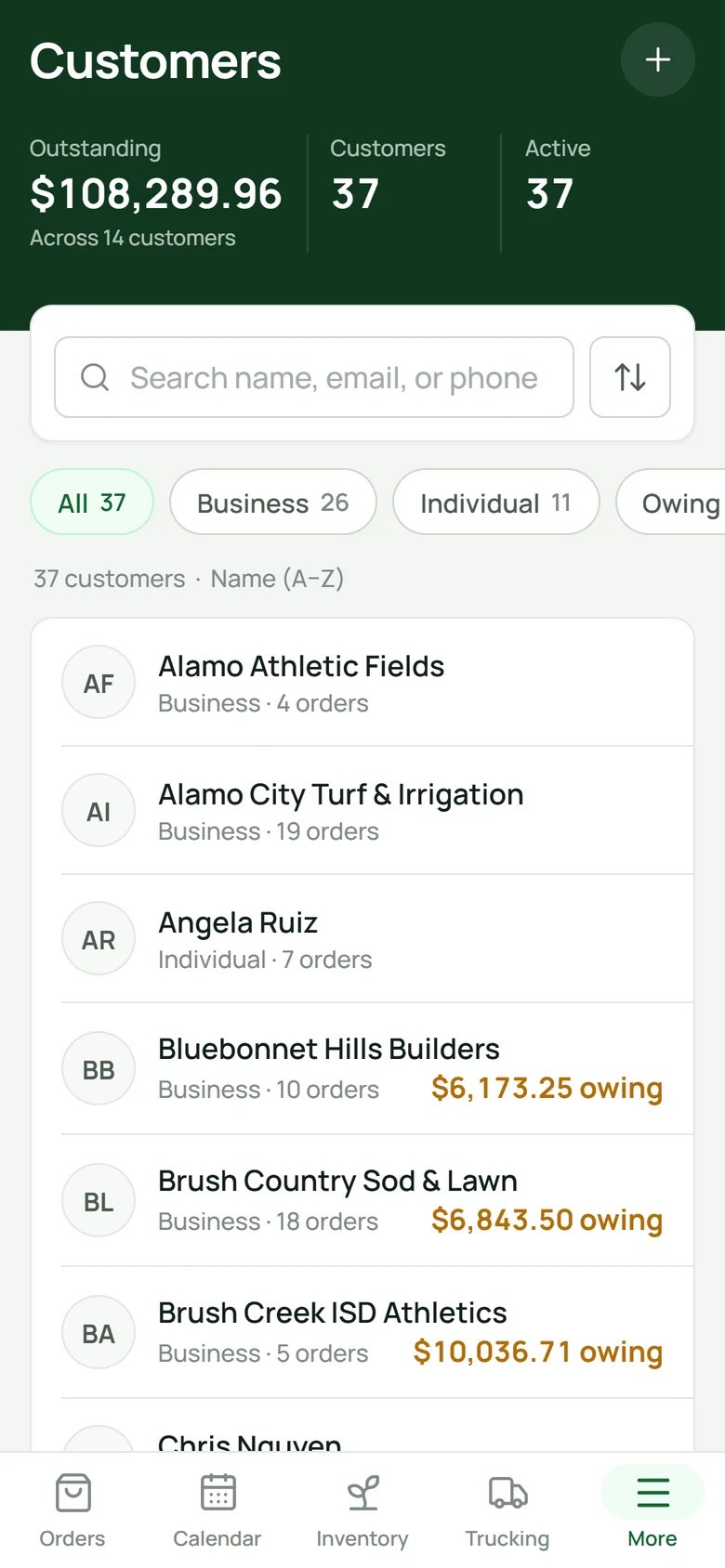
Customers in the Terrace phone app.
On a tablet
On an iPad or Android tablet, the tab bar becomes a rail down the left side, with the same destinations. Lists open the record beside them, so you can go through orders or customers without losing your place.What you can do on the phone
- Orders: browse and search orders, open one, create and edit orders, save a quote, and print a harvest list or delivery slip.
- Calendar: month, week and day views, with a quick peek at any order.
- Inventory: products, locations, crops and operations. Adjust stock, and Log operation with materials, from the field.
- Trucking: the driver’s day, with maps, navigation and proof of delivery. See Drivers.
- Under More: the Dashboard, Customers, Invoices (record a payment, email an invoice), My Tasks and read-only projects, Notifications, Settings, and Scout.
Use the web for these
Who lands where
The phone app opens on the most useful place for your role:- Office and operations staff land on Orders.
- Drivers land on Trucking. Drivers see Trucking and More.
- Everyone else lands on the first tab their role can use.
Without financial information
If your role can’t see financial information, the phone app looks the same with the money taken out. Money figures on the band are replaced, money columns are gone, and New Order and Edit order are hidden. See Team and permissions.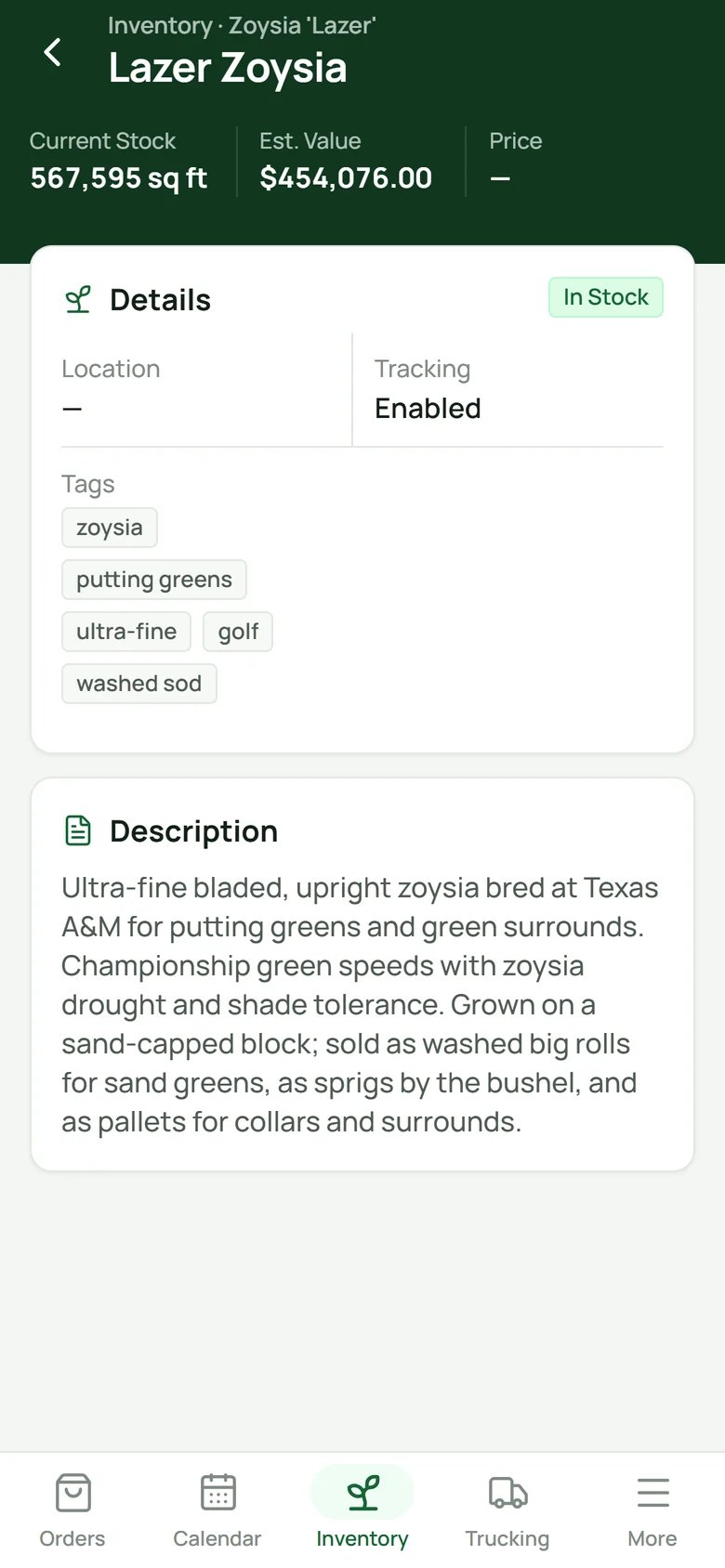
A product in the phone app.
Push notifications
The phone app is where push notifications arrive. Choose which notifications push to your phone in Settings › Account › Notification settings on the web, or under More › Settings › Notifications in the app. Tap a notification and the app opens right where it’s about. See Notifications.Getting started on the phone
The first time you open the app, a short welcome shows what Terrace does, then asks whether you have a sign-in:- Yes, sign me in takes you to sign in.
- My farm uses Terrace is for when you don’t have a sign-in yet. Ask your farm to add you, watch for the email from Terrace, then come back and sign in.
- I’m new to Terrace tells you more about the software.
People join a farm by invitation. If your farm already uses Terrace, ask an owner or admin to invite you. See Team and permissions.
Related
Drivers
The driver’s day on the phone, start to finish.
Getting around
The sidebar, Scout and lists on the web.
Notifications
Choose what pushes to your phone.
Quickstart
Set up your farm and take your first order.