

The Orders screen
Open Orders from the sidebar. A stats bar across the top summarizes your orders, and you can work in either of two views: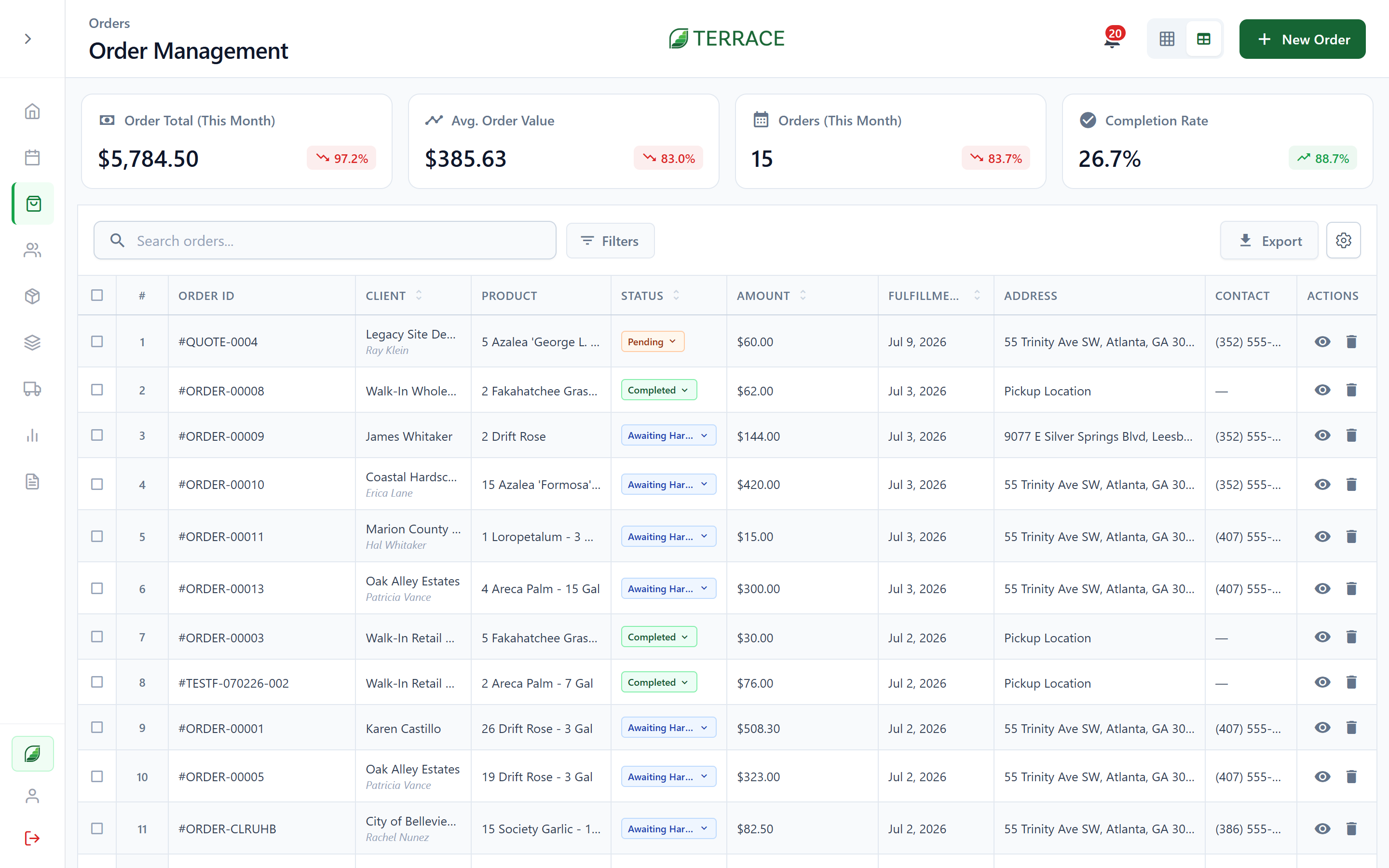
- Grid view: each order as a card, best for scanning status at a glance and working on mobile.
- Spreadsheet view: orders as rows with sortable columns, best for working through many orders quickly.
- Status: any lifecycle status, or All Statuses.
- Customer: a specific customer, or All Customers.
- Date: Next 7 Days, Next 30 Days, Past 30 Days, Last Month, or a Custom Date Range.
- Type: Business or Individual customers.
Create an order
Tap + New Order. Terrace walks you through four steps. The step indicator at the top shows where you are:1
Client Information
Pick the customer (or create one on the spot). Terrace pulls in their saved contacts, delivery addresses, discounts, and pricing tier, so everything downstream is priced correctly from the start.
2
Product Details
Add line items: products, quantities, and prices. Prices default from the product and the customer’s pricing tier, and you can adjust any line. Discounts and fees are calculated as you go.
3
Fulfillment
Set pickup or delivery, the location, and the fulfillment date. This is the date that drives your Dashboard, calendar, growing schedule, and trucking. A Schedule card on this step previews how many deliveries and pickups are already booked on each day so you can spot busy dates before committing. Select a day in the mini-calendar to set the fulfillment date and see that day’s other orders, and use the All / Delivery / Pickup filter to focus the view.
4
Review & Submit
Check totals, fees, discounts, and the final amount. You can record a payment at creation and generate the invoice at the same time.
Retail checkout
For walk-up sales like a farm stand or a will-call counter, use Retail Checkout instead of the full order flow. It’s a fast point-of-sale path: add products, take payment, done.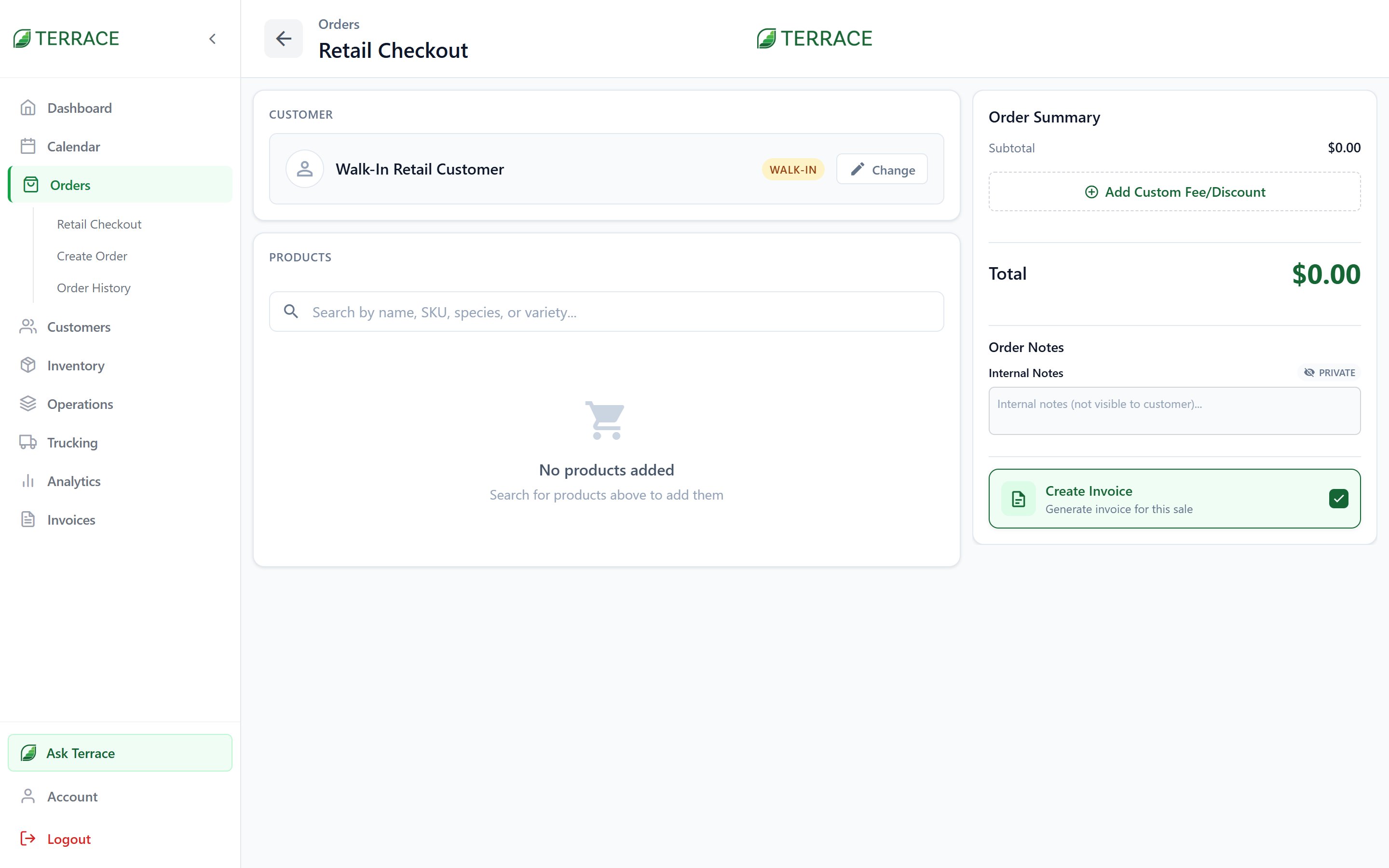
Quotes
Not ready to commit the sale? Use Email Quote to send the customer a quote document first. When they accept, the quote becomes an order without re-entering anything.The order lifecycle
Changing status is how you record progress, and some changes trigger action elsewhere in Terrace.Statuses that commit product deduct available inventory, so the same stock can’t be sold twice. If the order pulls from growing batches, Terrace prompts you to choose which batch to draw from. Cancelling releases whatever the order was holding.
Nursery, tree, and greenhouse farms see Awaiting Picking and Picked in place of Awaiting Harvest and Harvested, and the export sidebar’s harvest list becomes the Pick List. Sod farms keep the harvest wording. It’s a label change only — the status flow, permissions, and exports are identical.
Order calendar
Order Calendar lays your orders out by fulfillment date so you can plan the week: see what’s due, spot crunch days, and rebalance before they arrive.Exports
Export your orders to PDF or Excel from the export sidebar. Pick from saved templates or choose exactly which columns to include. That’s useful for pack lists, driver manifests, and end-of-week reporting.How orders connect to the rest of Terrace
Growing
Orders waiting on product appear on the growing schedule; logging a batch allocates it back to the order.
Inventory
Committing an order deducts stock; cancelling releases it.
Invoices
Generate the invoice from the order, email it, and track payments.
Trucking
Assign a driver to carry the order from pickup to delivery.